

Google Business Profile Holiday Hours in San Francisco: How to Set Them Right
Short answer: Google Business Profile holiday hours go in as special hours. Go to your profile and put in an entry with a start and an end, or a ticked box if you are not trading. This guide is for San Francisco owners who want a correct profile on screen before a busy season. It follows Google’s own help articles and makes no ranking, traffic or sales promises. For the bigger picture, see our local SEO help in San Francisco.
How Holiday Hours Show Up on Google
On certain dates, Google may show a warning on your profile telling people who search for you that your opening details might differ. Its About holidays on Google article says to arrange special entries in advance, so nobody has to guess.
Your Google Business Profile (GBP), called Google My Business until Google renamed it, is where people see your hours of operation on Google Search and Google Maps. A special entry alters one day and leaves your weekly plan alone. Think of the weekly plan as the standing sign over your counter and a special entry as a paper tag clipped to the shop window.
One rule trips people up. Google’s help article on special entries says they only show when your profile uses its main-schedule option. If you are new to profile basics, start with our walkthrough of the Google Business Profile for local businesses. To see where opening details sit among other profile features, read our map pack write-up.
Which Holidays to Plan For This Season
Google lists these US dates in its holiday article, as of October 30, 2026:
- Veterans Day: November 11, 2026
- Thanksgiving: November 26, 2026
- Black Friday: November 27, 2026
- Christmas Eve and the 25th: December 24 and 25, 2026
- New Year’s Eve: December 31, 2026
- New Year’s Day: January 1, 2027
This is Google’s US selection, not a full calendar for your shop. Include your own closures too, such as a staff event or an inventory count. The same source carries summer entries such as July 4, so repeat this routine each season.
Google also suggests confirming official occasions even when nothing is different. Write your holiday schedule on paper first, then go through it entry by entry and note which need a revision and which only a confirmation.
How to Set Google Business Profile Holiday Hours
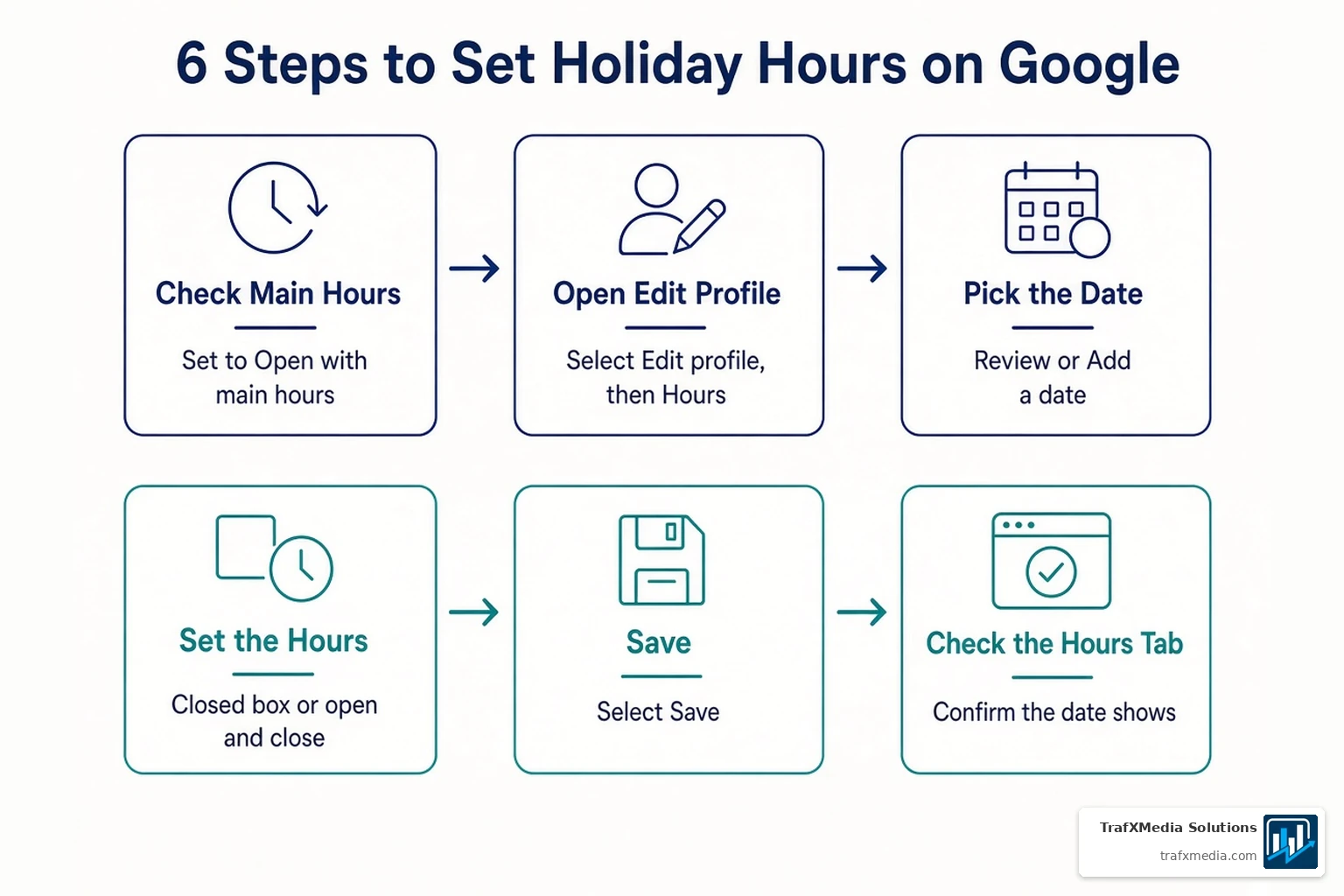
Follow these steps to set special hours. The click path comes from Google’s help articles, as of October 30, 2026. Menus can differ, so trust Google’s article over ours. You can learn more on Google’s own pages if a screen looks new.
Check That Your Main Hours Are Turned On
Begin with the weekly routine your regulars already know. Use the Google account that looks after the shop’s profile. For a second look, Google’s Edit your business hours article walks through the screens.
- Head to your Business Profile from the laptop on the counter by the register, choose Edit profile, then Hours, then Edit.
- Choose “Open with main hours.” The other option hides your weekly plan, and special entries will not show.
- Tick the boxes for your trading week, use the dropdowns and select the Save button. For example, a shop trading from 9 am to 5 pm would pick that start and that end in the dropdowns.
Add the Date and Set Open or Closed Hours
- Return to the Hours section, find “Special hours” and select Edit.
- If Google has already suggested a date for you, select Review to take it. For your own, select Add a date and type it in.
- If your business is open, uncheck “Closed” and enter your start and end times. If you shut, leave that ticked.
- For multiple sets in one go, such as a lunch window and an evening window, select More, then Add hours.
- Select Save.
Once your hours are saved, you can find them in the Hours tab of your business information, or directly under the same label.
One limit: a single entry cannot run longer than twenty-four hours. If you stay open past midnight, split it into two separate entries. Google’s own sample is a shift from 7:00 pm until 5:00 pm the next afternoon, which you enter as two entries split at midnight.
Confirm the Suggested Dates, Even If Nothing Is Different
If a holiday matches your regular week, confirm the suggestion anyway. Google says this makes it clear to customers that your entry is correct, so treat a confirmation as a signal, not a chore. Accurate hours are the point of the whole exercise.
After you update, customers can see a confirmation message on your profile, plus a post under Updates on mobile. Take that post down and the message disappears with it.
Which Tool Fits: Special Hours, More Hours or a Temporary Closure?
Google gives you three tools, each for a different situation.
- Special entries: for a brief adjustment or a closure of up to 6 days in a row, such as a holiday or special event.
- More hours: for specific services with their own windows, like senior hours or pickup.
- Temporarily closed: for a stretch of 7 or more days in a row, or when you cannot say when you will be back.
A short closure is a job for a special entry, not for the long-closure status. Google’s Mark your business as closed article covers that status. Its cutoff wording differs slightly from the other article, so if your closure sits near the line, read both.
The second tool works differently. Google’s More hours article says they do not display until your regular hours are in place, and each type needs its own entry. You can set More hours for drive through, pickup and similar options, which tells people who search when certain services are available. Google groups these under “Other operation changes.” If you run a kitchen, our write-up on local SEO for restaurants covers that side, and our post on local SEO for chiropractors shows how a clinic handles closures.
Holiday Hours for More Than One San Francisco Location
With several locations, you do not need to visit each profile by hand. Fill in the “Special hours” column of your bulk upload spreadsheet. Write each entry as YYYY-MM-DD, a colon, then the start and end, such as 2026-11-26: x, where “x” stands for a full shutdown. If you are working on existing businesses only, Google says you can include just the store code and that column. Import the sheet and the entries show only on the dates you name.
For a longer stretch, Business Profile Manager lets you flag several locations together. Select them, choose Actions, then Mark as temporarily closed.
Holiday Hours Mistakes to Avoid
- Leaving the option that hides your weekly plan switched on, so special entries never show.
- Using the long-closure status for a short break instead of a special entry.
- Passing over a holiday because your usual week already fits it. Google recommends confirming it.
- Putting a late shift in as one long block instead of two.
- Waiting until the final week. Google looks over updates before they go live on your profile, so start early. Google’s Edit your Business Profile article describes how that review works.

Plain advice, no claim attached: keep your website and other places you appear matching your profile, so they reflect your actual week. Our local citations checklist shows how. For another vertical, our local SEO for auto repair shops post has a closures FAQ. A quick pass through each listing now spares you untangling them in the busiest week.
Frequently Asked Questions
When Should a San Francisco Shop Set Its Holiday Hours on Google?
Well ahead. Google says to line up special entries before the dates it flags, and it looks over updates before they go live, so do not wait for the date itself.
What If My Shop Stays Shut Longer Than Expected?
Special entries top out at a 6-day stretch. At 7 or more, or when you cannot say when you will reopen, Google points you to Temporarily closed. Near that line, read Google’s article.
Why Does Google Warn That My Hours Might Differ?
On occasions Google flags, a warning may appear on your profile saying your opening details might differ. Entering special entries in advance lets people quickly see your real plan instead.
Can I Add Hours for Delivery or Takeout Only?
Yes, that is what More hours are for. Use them for anything with its own windows, such as drive through and pickup, after your regular week is in, since the extras do not show until then.
Does My Website Need the Same Hours?
Yes, as advice, not a Google rule. The steps above only touch your profile, so update your website and every other place you appear, so people see the same details wherever they search.
Need more help keeping your San Francisco business profile current? TrafXMedia Solutions can point you in the right direction. Contact us to talk it through.